Does this replace our other security tools?
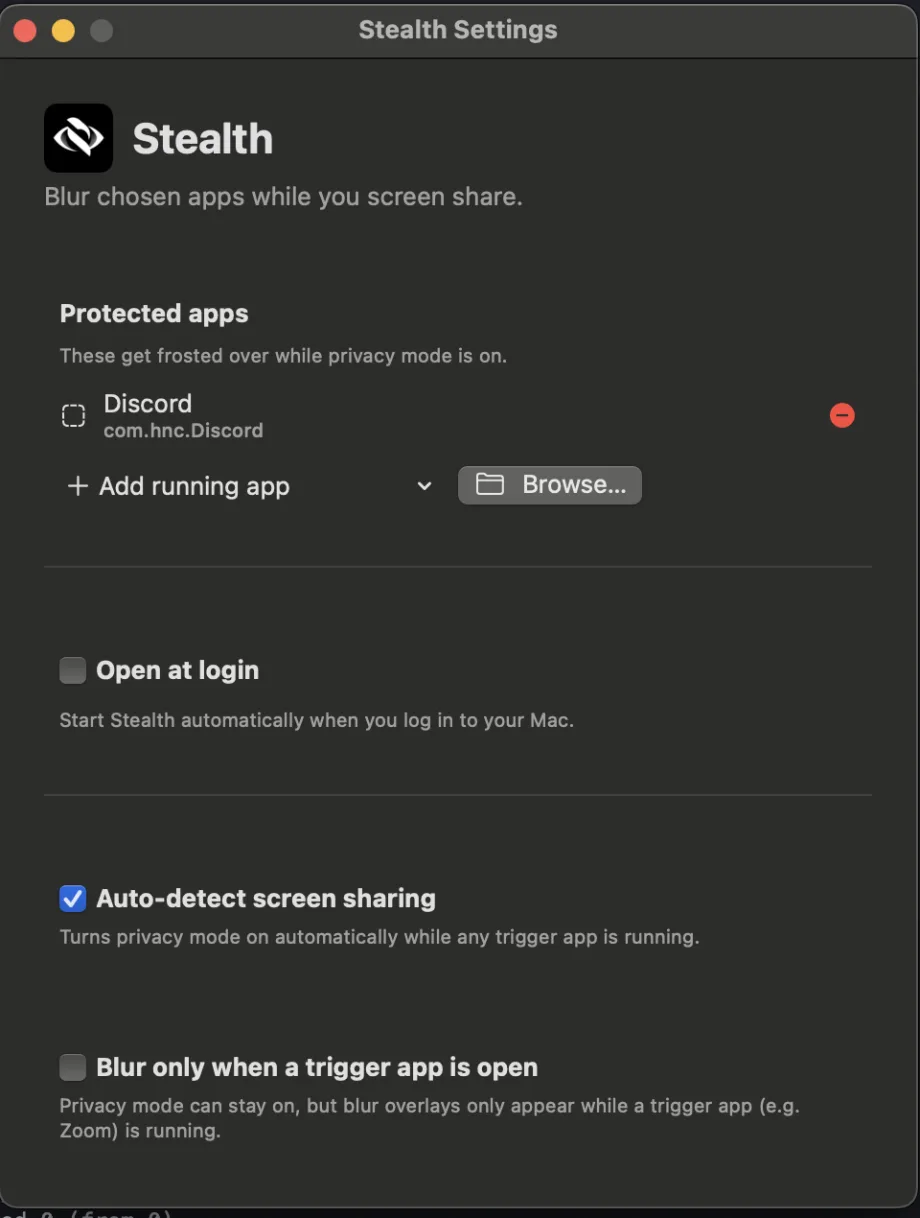
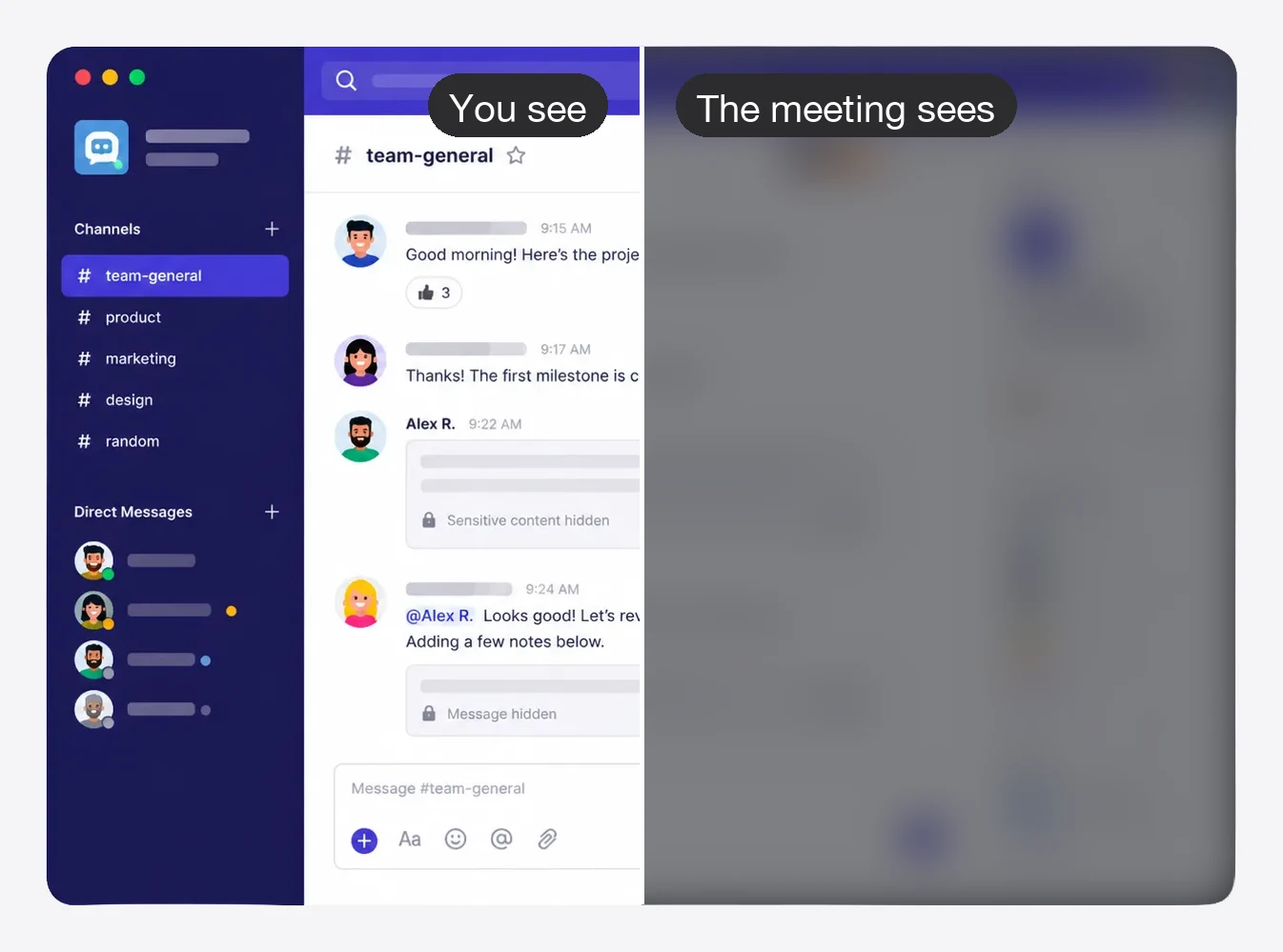
No. Stealth doesn’t inspect files, email, USB transfers, or network traffic. It keeps sensitive apps out of screen shares and recordings. It works alongside whatever you already run — or on its own.
Can we deploy with Jamf or Intune?
Yes. The team portal gives you a macOS configuration profile and a Windows registry snippet. Pair that with the Store app or PKG/DMG. Employees never see a license window.
Do people have to paste a key?
Not if you use the deployment token. Optional work email on the profile attaches the device to that person instead of consuming an unnamed device seat.
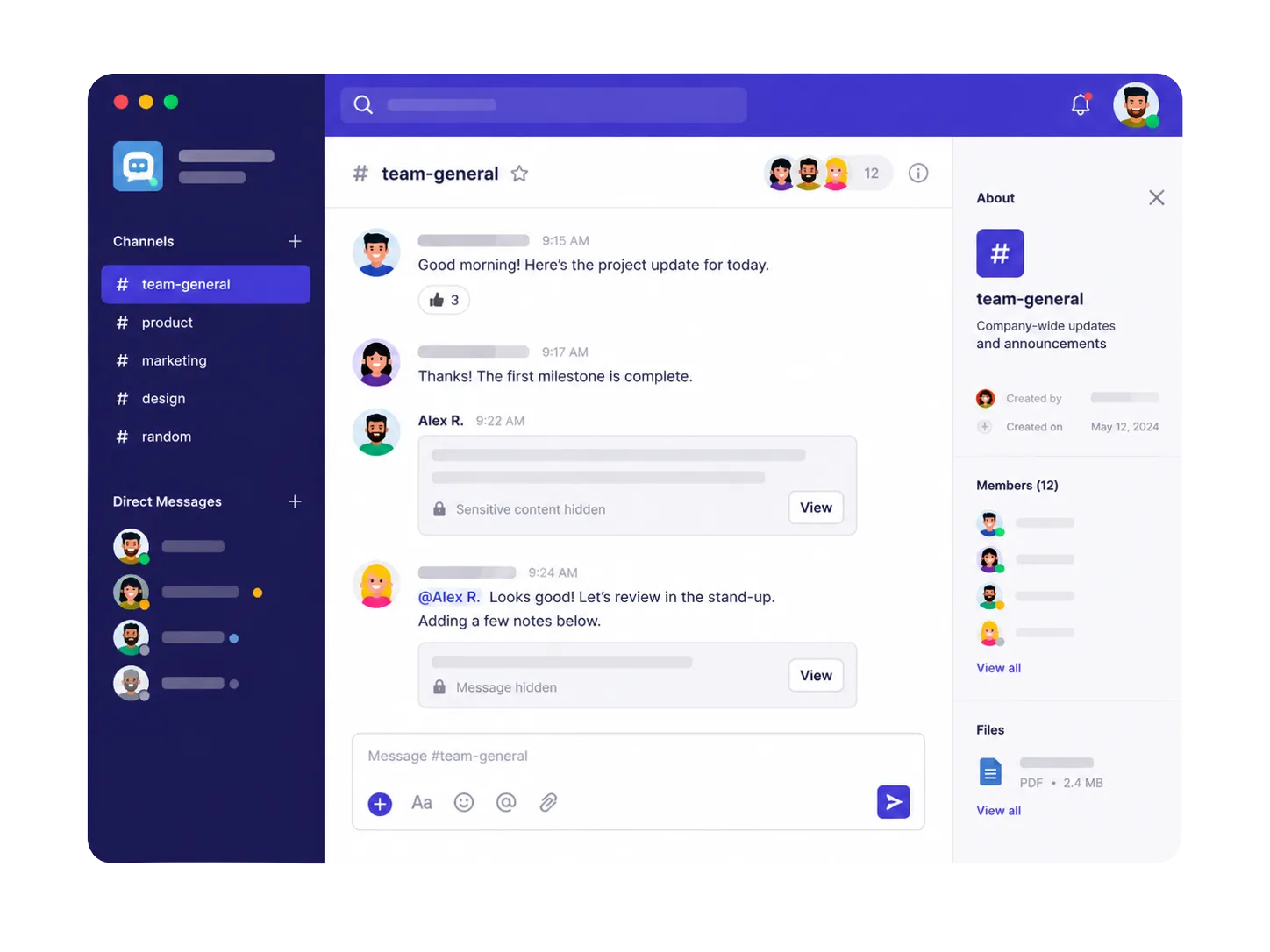
If we lock Slack, can they turn it off?
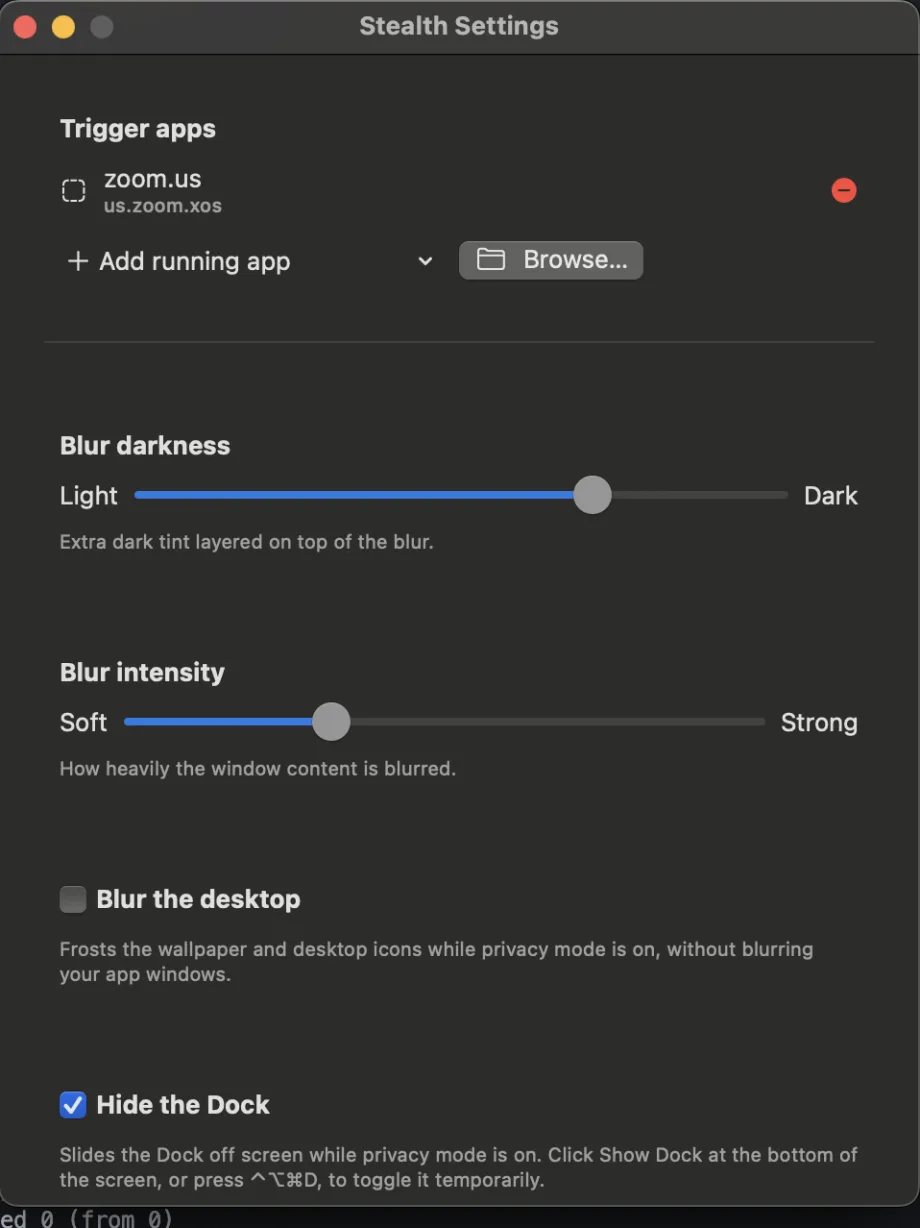
No. Locked settings show as “Managed by your organization.” Change the lock in the portal and every enrolled computer picks it up on the next check, about five minutes.
Does Stealth upload the screen?
No. The frost is local. The only network calls are license and policy checks — not pixels, not window contents. Details on the security page.
Mac and Windows from one policy?
Yes. Each app in the policy has a Mac bundle ID and a Windows process name. Each OS uses what it understands and ignores the rest.
What if they share a single window?
Stealth protects full-display share and recordings of the display. If someone shares a single app window, that window is what the meeting sees. That’s a real limit — say it in training, or lock people into “share screen” defaults where you can.
Is this HIPAA / SOC 2 certified?
Stealth is a local utility, not a hosted processor of your patient or customer data. We don’t claim those badges. If you need a vendor packet, email support@getstealth.app.
How does pricing work as we grow?
Volume bands: $36/user/year or $3.30/month (5–24), $30 or $2.75 (25–99), $24 or $2.20 (100–249), $18 or $1.65 (250+). Monthly is 10% more. Change quantity in the portal; Stripe prorates immediately. Existing customers keep their current rate.
Can someone just buy one copy?
Yes. Personal Stealth is $19 one-time, 7-day trial, two activations. No MDM, no company locks.